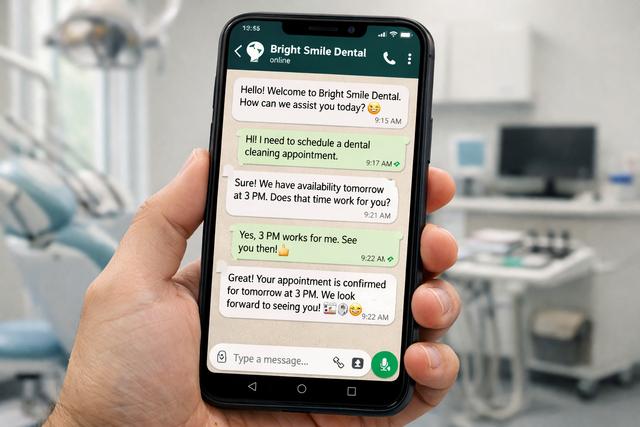
WhatsApp has quietly become the default messaging app for a large share of the world's dental patients. If your clinic still relies on phone calls or plain SMS to confirm appointments, you are probably paying the price in no-shows, front-desk time, and missed revenue. WhatsApp reminders routinely see open rates above 95 percent and reply rates in double digits — numbers that SMS and email cannot touch.
The catch is that sending WhatsApp reminders the right way is not as simple as installing the consumer app on a spare phone. Meta has strict rules about how businesses can message patients, and breaking them can get your number banned overnight. This guide walks you through the full, compliant setup — from verifying your practice on Meta to automating the reminder cadence inside DodoDentist.
Before you start: WhatsApp Business vs Business API
There are two ways to send messages from a dental clinic on WhatsApp, and the difference matters a lot.
WhatsApp Business app is the free mobile app meant for tiny businesses. It runs on a single phone, caps you at about 256 broadcast recipients per list, and has no proper automation or audit trail. It is fine for a solo hygienist. It is not fine for a clinic that wants to send thousands of reminders a month, link messages to patient records, or prove compliance in an audit.
WhatsApp Business API (WABA) is the professional channel. It runs in the cloud, supports unlimited volume, allows approved message templates, and integrates with practice management software like DodoDentist. It is the only path that lets you send proactive appointment reminders at scale.
For everything that follows, assume you are setting up the WhatsApp Business API. If you want a deeper technical overview first, read our WhatsApp Business API for dentists setup guide before continuing.
Step 1 — Verify your dental practice on Meta Business Manager
Before Meta will let you send a single template message, it needs to know you are a legitimate business.
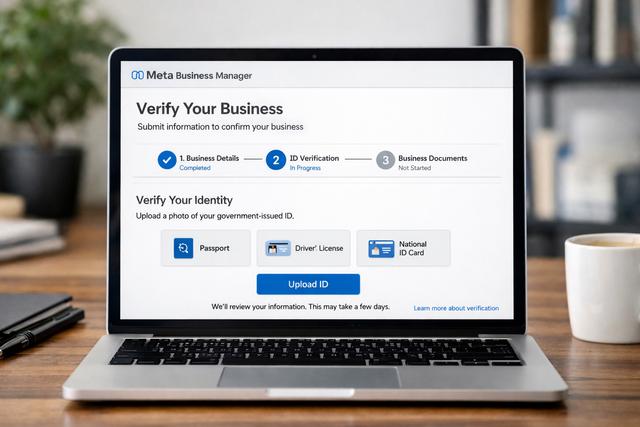
Here is the shortest path to verification:
- Create a Meta Business Manager account at business.facebook.com using a clinic email (not a personal Gmail).
- Add your clinic's legal business name, address, and phone number exactly as they appear on your tax registration or dental council listing.
- Upload a business document: usually a utility bill, tax certificate, or dental council registration in the clinic's name.
- Wait. Verification takes anywhere from a few minutes to several business days. Do not start the WhatsApp setup until the green "Verified" badge appears.
Once your business is verified, you can apply for the green-tick verified business profile on WhatsApp itself. The green tick is optional but highly recommended — patients trust a verified healthcare provider far more than an unverified number.
Step 2 — Provision a WhatsApp Business API number
You now need a phone number dedicated to the WhatsApp Business API. This number cannot already be active on the consumer WhatsApp or Business apps. If you want to keep using your existing clinic number, you will have to delete its WhatsApp account first (back up chats if you need them).
You have two realistic options:
- Bring your own number. Buy or port a number through a WhatsApp Business Solution Provider (BSP), complete SMS or voice verification with Meta, and connect it to your WABA.
- Let DodoDentist provision it for you. We register and verify a new business number in your country, attach it to your verified Meta Business, and hand you the keys. Most clinics go live in under a working day.
Whichever path you pick, the end state is the same: a WABA with at least one verified phone number, ready to send template messages.
Step 3 — Submit a utility template for approval
You cannot just type a free-form message to a patient out of the blue. Meta requires every proactive business-initiated message to use a pre-approved template, classified as either utility, authentication, or marketing. Appointment reminders fall squarely under utility.
Here is a template that has been approved for dozens of DodoDentist clinics:
Header: Appointment Reminder — {{clinic_name}}
Body: Hi {{patient_first_name}}, this is a friendly reminder about your dental appointment on {{date}} at {{time}} with Dr. {{dentist_name}}. Reply 1 to confirm, 2 to reschedule, or 3 to cancel. — {{clinic_name}}
What Meta looks for when approving a template:
- A clear business purpose — no marketing language in a utility template.
- No emoji spam, no all-caps — one or two emojis maximum.
- Variables clearly labeled —
{{patient_first_name}}, not{{1}}. - Localized copy — if your patients speak Spanish, submit a Spanish version of the same template rather than translating on the fly.
Approval usually lands within 24 hours. Rejections almost always come down to tone or classification — you can fix and resubmit in minutes.
Step 4 — Collect patient opt-in the right way
This is the step most clinics get wrong, and it is also the step that can get your number banned. WhatsApp's commerce policy and most privacy laws (GDPR, HIPAA, LGPD, DPDP) all require explicit, auditable opt-in before you message a patient.
Concretely, this means:
- Add a tick-box on your intake form: "I agree to receive appointment reminders and updates from [Clinic Name] on WhatsApp at the number I provided."
- Store the timestamp, IP address or device fingerprint, and exact consent wording the patient agreed to.
- Never pre-tick the box. Consent must be an active choice.
- For existing patients, collect consent retroactively via a one-off SMS or email with a confirmation link — do not assume consent from a past phone conversation.
DodoDentist keeps a full audit trail of every opt-in, including the version of the consent text shown, so you have something defensible if a regulator ever asks.
Step 5 — Automate the reminder cadence in DodoDentist
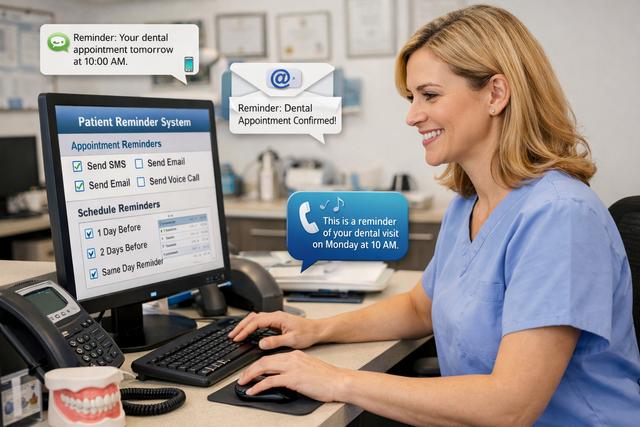
Once your template is approved and your patients have opted in, the automation itself is the easy part.
Inside DodoDentist, open Settings → Reminders → WhatsApp and configure:
- T-48h reminder — first touch, two days out. This gives the patient enough lead time to reschedule.
- T-24h reminder — confirmation request. Most "1 to confirm" replies land here.
- T-2h reminder — optional same-day nudge for high-value appointments like implants or surgeries.
Each scheduled job uses the utility template you approved in Step 3, with the variables filled in automatically from the appointment record. There is nothing for your receptionist to write, copy, or paste. The full configuration walkthrough lives in our how to send reminders documentation.
If you want the pure product overview rather than the step-by-step, our WhatsApp appointment reminders for dentists page has the feature summary and pricing.
Step 6 — Handle replies and fallback to SMS
A reminder that cannot receive a reply is half a system. Your workflow needs to handle three things automatically:
- Confirmations ("1"). Mark the appointment as confirmed in the calendar, stop further reminders, and notify the front desk if you want.
- Reschedule requests ("2"). Open a 24-hour conversation window with the patient, offer available slots, and book the new time directly into the schedule.
- Cancellations ("3"). Free the slot, add the patient to the waitlist follow-up, and trigger a short "sorry to miss you" message.
DodoDentist routes each of these automatically. You do not have to watch an inbox.
You also need a fallback for delivery failures. A WhatsApp message can fail because the patient uninstalled the app, switched numbers, or blocked the business profile. When that happens, the system should automatically re-send the same reminder as SMS within a few minutes — patients still get the message, and you still get the confirmation. This is the auto-fallback we describe on the main dental appointment reminder software page.
Common errors and how to fix them
Even with everything set up correctly, you will eventually hit one of these three problems. Here is how to handle each.
Template rejected. Read the rejection reason carefully. The three most common fixes are: change the category from marketing to utility, remove promotional language ("book now", "best prices"), and tone down emojis. You can resubmit a fixed template immediately — there is no cool-down.
Number banned or flagged. This almost always means patients reported your messages as spam. Stop sending immediately, audit your opt-in records, and contact your BSP (or DodoDentist support) to appeal. Long-term prevention is simple: never message without documented consent, and always include an easy opt-out path.
24-hour window expired. Once a patient replies to you, you have a free-form 24-hour "customer care window" to continue the conversation without a template. After that, any further outbound message must use an approved template. If you see "message outside 24-hour window" errors, your automation is trying to reply too late — shorten your response SLA or switch that path to a template.
Ship it
Setting up WhatsApp reminders the right way is a one-time project that pays back every week forever. Clinics that switch from phone-call reminders to automated WhatsApp reminders typically cut their no-show rate by 30 to 50 percent within the first two months.
If you would rather not spend a day inside Meta Business Manager, we can do the whole setup for you.
Skip the Meta paperwork — DodoDentist sets up your WhatsApp Business API for you. Start free.