Setting up automatic dental appointment reminders is the single highest-ROI automation in a practice — and most clinics get it wrong by simply turning on every channel, every day, at random times. A sloppy setup annoys patients, trains them to ignore you, and barely moves your no-show rate.
This guide walks you through the seven steps we use with hundreds of dental practices to cut no-shows by 30-50% without flooding patient inboxes. You can complete the whole thing in under 30 minutes with SMS appointment reminders like DodoDentist, or adapt the same playbook to whatever stack you use.
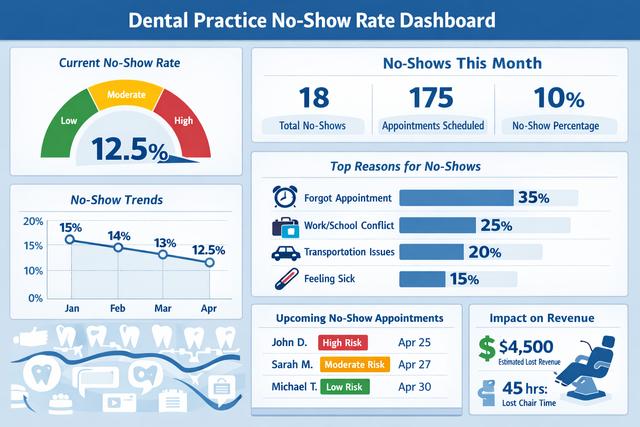
Step 1 — Audit your current no-show rate
You cannot improve what you do not measure. Before you turn on a single reminder, pull your last 90 days of appointment data and count two numbers: total scheduled appointments, and the number that became no-shows (patient never arrived, never rescheduled in advance).
Divide the second by the first and multiply by 100. That is your baseline no-show rate. The US dental average sits at 15-18%, and specialty clinics (ortho, perio) often run higher. Anything above 20% is a red flag that your current recall and reminder flow is broken.
Save this number. You will compare against it again in Step 7. For a deeper look at the economics of why this matters, see our companion piece on 10 ways to reduce patient no-shows.
Step 2 — Import your patient list
Automated reminders only work if the system knows who to reach and how. Export your existing patient list from your current PMS (practice management system) as a CSV with at minimum: first name, last name, mobile number in E.164 format (+1..., +44...), email, and preferred language.
If you are migrating to DodoDentist, follow our documentation on how to import patients — the importer deduplicates by phone number and flags records with missing or malformed contact info so you can fix them before sending a single message.
Two things to watch for during import:
- Phone numbers stored as landlines cannot receive SMS. Flag and update these.
- Patients who have previously opted out of marketing still need to be marked as "transactional reminders only" — reminders are permitted; marketing is not.
Step 3 — Pick your reminder channels (SMS / WhatsApp / email)
No single channel wins everywhere. The right mix depends on your country and your patient demographic:
- SMS: Best in the US, UK, Canada, and Australia. ~98% open rate. Works on any phone, no app needed. Costs $0.01-$0.05 per message.
- WhatsApp: Dominates in Europe, Latin America, India, and the Middle East. Free per message for utility templates, supports rich media (maps, PDFs, images), and patients can reply conversationally.
- Email: Cheapest channel and good for longer content (pre-op instructions, directions, intake forms), but ~20% open rate makes it unreliable as the only channel.
Our recommendation: pick one primary channel based on geography, then add email as a backup for patients with no phone on file. DodoDentist can auto-route WhatsApp first and fall back to SMS if the WhatsApp message is not delivered within a set window.
Step 4 — Write or pick reminder templates
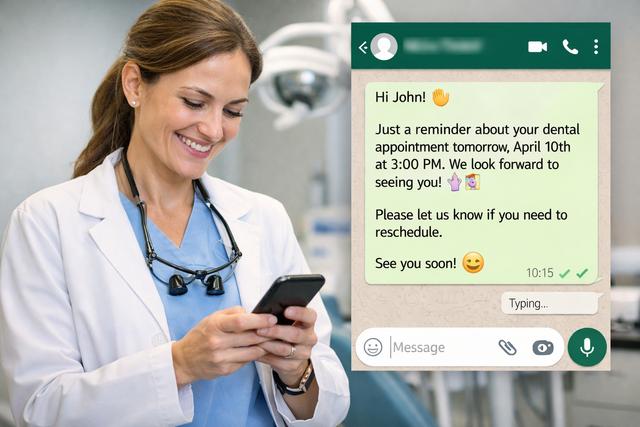
Most practices overwrite their templates. A reminder is not marketing copy — it is a utility message, and shorter is better. Every template should include five elements: patient first name, practice name, appointment date, appointment time, and a one-tap reply option ("Reply 1 to confirm, 2 to reschedule").
A working SMS template looks like this:
"Hi {firstName}, this is {practiceName}. Reminder: you have an appointment on {date} at {time}. Reply 1 to confirm, 2 to reschedule. Thanks!"
A working WhatsApp utility template can add a map link, a directions PDF, and pre-op instructions as an attachment — use the richer channel to reduce day-of questions and late arrivals.
For the full reference on sending reminders across channels, see our docs on how to send reminders.
Step 5 — Choose a cadence that does not annoy patients
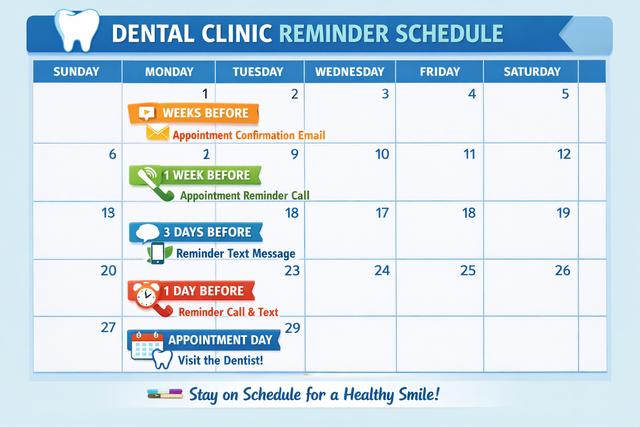
The worst thing you can do is send five reminders. Patients unsubscribe, block your number, or — even worse — tune them out entirely and still miss the appointment. Three touchpoints is the sweet spot:
- T-7 days: Soft reminder with option to reschedule. This is the window where cancellations are cheap because you can refill the slot.
- T-24 hours: Firm reminder with confirmation request. This is the single highest-impact message — do not skip it.
- T-2 hours: Final nudge with directions. Skip this one for recurring check-up patients; keep it for first-timers and surgical cases.
Use how to add an appointment as your checklist when scheduling — the cadence should auto-attach based on appointment type, not be configured per-appointment.
Step 6 — Enable two-way confirmations and recall fill
A one-way reminder is a missed opportunity. Two-way confirmations let patients reply "1" to confirm, "2" to reschedule, or "3" to cancel — and you should act on each automatically:
- Confirmed: Mark the appointment green in the calendar so front desk knows not to call.
- Reschedule: Send an auto-reply with a booking link or two suggested slots.
- Cancel: Immediately free the slot and trigger a recall message to the waitlist. A cancellation filled within 4 hours is worth just as much as the original booking.
This is the difference between "we send reminders" and "we actually reduce no-shows." The recall-fill automation alone typically recovers 30-40% of cancellations into filled slots within the same week.
Step 7 — Measure, iterate, and automate the exceptions
After 30 days of the new flow, pull the same no-show calculation from Step 1 and compare. Most practices see a 30-50% reduction in the first month, then a further 10-20% gain in months two and three as the edge cases get handled.
Watch these five metrics weekly:
- No-show rate by channel — is WhatsApp outperforming SMS for under-40 patients?
- Confirmation rate by template — A/B test wording if one is clearly winning.
- Reply-to-reschedule rate — high numbers mean your booking link is working.
- Opt-out rate — anything above 2% means your cadence is too aggressive.
- Cancellation-to-refill rate — the signal that your recall automation is earning its keep.
Once the baseline metrics stabilize, automate the exceptions: surgical cases get an extra 48-hour touchpoint; first-time patients get a welcome video; high-value patients (implants, aligners) get a personal call from reception instead of an SMS. Let the automation handle 90% of cases and use the saved staff time for the 10% that matter most.
Summary
The 7-step setup: audit your no-show rate, import clean patient data, pick the right channels for your geography, write short utility templates, use a 7-day / 24-hour / 2-hour cadence, enable two-way confirmations with recall fill, and measure weekly. Done correctly, you will recover enough revenue from one month of caught no-shows to pay for the software for a year.
Download DodoDentist free and send your first reminder in under 30 minutes.